The following guide is a sub-article of Achieving Color Precision.
Discord
New Solution (Automatic)
To disable color management in Discord we will be implementing the --force-color-profile=srgb command line argument. Unfortunately this is not as simple as adding the parameter to the current Discord shortcut, so as a remedy this script resolves this issue.
Batch File
Open Notepad and paste the following script:
@echo off

taskkill /IM discord.exe /F >nul 2>&1

start "" "%LOCALAPPDATA%\Discord\Update.exe" --processStart Discord.exe --process-start-args "--force-color-profile=srgb"
How it works
The program runs the following steps:
- Kills any existing Discord instances
- Launches Discord with
--force-color-profile=srgb
Save the file as a .bat file and name it whatever you like. Make sure to set Save as type to All Files (*.*), and save it wherever you like.

AutoHotKey Script
The following script behaves the same as above but fixes an issue with discord’s icon disappearing from the taskbar upon restart.
- Install AutoHotKey and run AutoHotkey Dash.
- Click New Script and give it a name and location. Where you choose to save it is up to you.
- Choose Empty and click Edit.
- Paste the script below and save.
Important
Make sure to change the X and Y values for your discord taskbar icon.
Hint: you can use Window spy in AutoHotkey Dash to obtain these screen mouse position values.
#Requires AutoHotkey v2.0
CoordMode "Mouse", "Screen"

; ==== Configuration: CHANGE THESE VALUES!!
discordX := 2268
discordY := 1415
; =====

RunWait('taskkill /IM discord.exe /F', , 'Hide')
Sleep(100)

MouseGetPos(&oldX, &oldY)
MouseMove(discordX, discordY, 0)
Sleep(100)
MouseMove(oldX, oldY, 0)

discordDir := EnvGet("LOCALAPPDATA") "\Discord"
updateExe := discordDir "\Update.exe"
Run('"' updateExe '" --processStart Discord.exe --process-start-args "--force-color-profile=srgb"')
How it works
The program runs the following steps:
- Kills any existing Discord instances
- Saves your current cursor position
- Hovers over the Discord taskbar icon briefly to remove it
- Returns your cursor to the previous position
- Launches Discord with
--force-color-profile=srgb
Creating the Shortcut
Find the .bat or .ahk file you created and create a shortcut by right clicking the file → Send to → Desktop (create shortcut)

Now that you have a shortcut, right click the shortcut you made and go to Properties.

In the General tab you can choose to rename it to whatever you like, and you can even change the icon in the Shortcut tab.

To use the original discord icon simply locate the %localappdata%\Discord path, find the app-1.0.#### folder, locate app.ico, and copy-paste the file to a different location.
Then in the Properties you can click Change Icon to set the icon to the new app.ico icon you just pasted.

Auto Startup
To run your .bat or .ahk file on startup, go to %appdata%\Microsoft\Windows\Start Menu\Programs\Startup in your file explorer. If there is already a Discord shortcut present feel free to delete the old shortcut and copy your new shortcut into the directory. Once that is done, the .bat file you created should start up every time you log into windows.

Start Menu
To add your .bat file to your Start Menu, simply go up a folder or go to %appdata%\Microsoft\Windows\Start Menu\Programs and copy your shortcut to the destination.

Important
Make sure you DISABLE
Open Discordin your Discord Settings located in theWindows Settingstab for this to work!
And you’re done! Discord should now default in most scenarios to launching with color management disabled.

Left: Default | Right: With
--force-color-profile=srgb
New Solution (Manual)
For those who prefer a more straightforward solution with no scripting involved, this is an alternative way to disable color management in Discord.
Warning
This method only works on a per-version basis. When discord updates, the shortcut path to Discord.exe gets changed so this is not a permanent solution. For an automatic solution please see the above section.
Navigate to %localappdata%\Discord, find the app-1.0.#### folder and locate Discord.exe. Right click the executable → Send to → Desktop (create shortcut).

Once you have created a shortcut (you may rename it), right click the shortcut and click Properties.

At the end of the Target dialogue box past the following command line argument and click OK or Apply.
--force-color-profile srgb

Afterwards you may launch Discord through the shortcut on your desktop and the colors should be displaying correctly.
Left: Default | Right: With
--force-color-profile srgb
Old Solution (Deprecated)
In Discord, go to your user settings in the bottom left. Click on Advanced in the sidebar and make sure to turn Hardware Acceleration OFF. Your Discord will restart automatically.
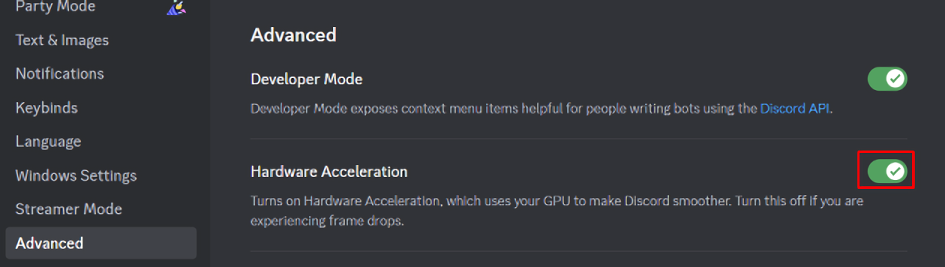

Left:
Hardware AccelerationON | Right:Hardware AccelerationOFF